How to Maintain an Xprinter Thermal Printer for Long-Term Performance
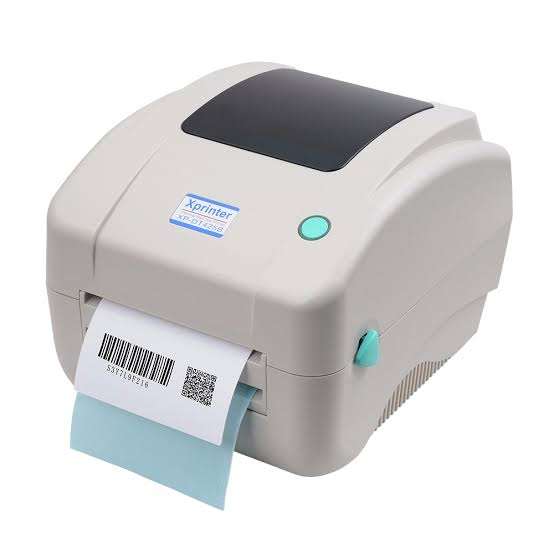
Thermal printers play an important role in modern business operations, particularly in retail stores, restaurants, warehouses, and logistics facilities. They are frequently used to print receipts, product labels, shipping information, and barcodes. Because these devices often operate throughout the working day, regular maintenance is essential for preserving print quality, preventing unexpected interruptions, and extending equipment service life.
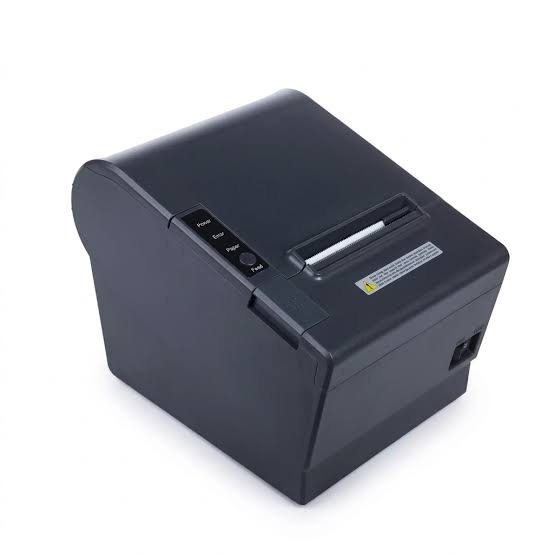
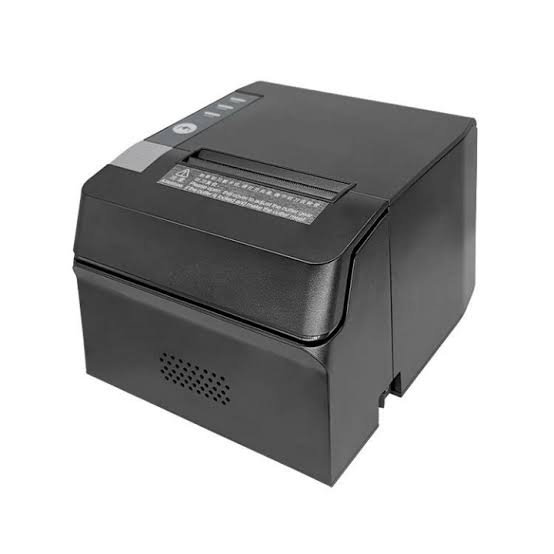
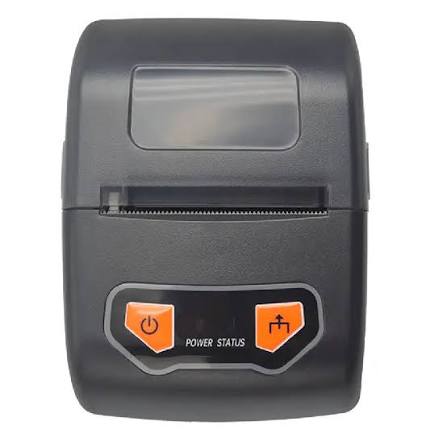
An Xprinter Thermal Printer can support different commercial printing requirements, but its long-term performance depends on proper handling, suitable printing materials, and routine cleaning. Even though thermal printers generally require fewer consumables than conventional ink-based devices, their internal components still need attention. Understanding the correct maintenance practices can help businesses keep their printing equipment operating consistently.
1. Clean the Thermal Printhead Regularly
The thermal printhead is one of the most important components of a thermal printer. It contains small heating elements that activate selected areas of the printing material to produce text, graphics, and barcodes.
During regular operation, paper dust, adhesive residue, and other contaminants can accumulate on its surface. This buildup may cause faded printing, missing lines, uneven output, or reduced print quality.
To maintain the printhead:
- Turn off the printer and disconnect the power supply.
- Allow the printhead to cool before cleaning.
- Use a manufacturer-recommended cleaning pen or suitable lint-free material.
- Remove dust and residue gently without scratching the surface.
- Allow the cleaned area to dry completely before using the printer again.
The cleaning frequency should depend on printing volume and the type of media being used. Businesses with heavy workloads may need more frequent inspections.
2. Use Compatible Thermal Paper and Labels
Printing materials have a direct effect on printer performance. Using unsuitable paper or labels can increase wear, cause feeding problems, and affect the clarity of printed information.
Different thermal printers support different media specifications, including paper width, thickness, roll diameter, and label dimensions.
Before purchasing printing supplies, check the manufacturer’s recommendations and verify compatibility with the specific printer model.
High-quality compatible materials can help:
- Maintain consistent printing results.
- Reduce unnecessary printhead contamination.
- Improve barcode readability.
- Minimize paper-feeding problems.
- Support reliable daily operation.
Avoid using damaged, excessively dusty, or improperly stored paper rolls.
3. Inspect and Clean the Platen Roller
The platen roller is responsible for moving paper or labels through the printing mechanism. It also helps maintain appropriate contact between the printing material and the thermal printhead.
Over time, dust, adhesive residue, and other contaminants may accumulate on the roller. This can cause uneven paper movement, slipping, or inconsistent printing.
Regular inspection helps identify early signs of wear.
When cleaning the platen roller, follow the manufacturer’s instructions and use appropriate cleaning materials. Check for cracks, deformation, or surface damage that could affect paper movement.
If the roller becomes excessively worn, replacement may be necessary.
4. Keep the Paper Path Free from Dust and Debris
Dust and small particles can enter the printer through paper compartments and other openings. Accumulated debris may interfere with sensors, rollers, and paper-feeding components.
A clean paper path helps maintain accurate media positioning and reduces the possibility of printing interruptions.
Businesses should inspect the internal paper compartment periodically and remove loose debris using an appropriate cleaning method.
Compressed air should only be used if permitted by the manufacturer’s maintenance guidance, as unsuitable pressure or technique may move debris into sensitive components.
Keeping the printer covered when it is not in use can also help limit dust accumulation.
5. Avoid Excessive Heat and Humidity
Environmental conditions can influence both printer performance and the quality of thermal printing materials.
Excessive heat may affect heat-sensitive paper, while high humidity can contribute to media deterioration and other operational problems.
For better equipment protection:
- Place the printer in a clean and dry location.
- Avoid direct exposure to sunlight.
- Keep it away from heaters and other heat-producing equipment.
- Maintain adequate ventilation around the device.
- Avoid locations where water or liquid spills are likely.
- Follow the manufacturer’s recommended operating temperature and humidity ranges.
Proper placement is particularly important in restaurants, warehouses, and industrial facilities where environmental conditions may vary.
6. Check Paper Loading and Alignment
Incorrect paper installation can cause several common printing problems, including paper jams, blank receipts, uneven margins, and misaligned labels.
Employees should ensure that the paper roll is installed in the correct direction and positioned properly within the compartment.
For direct thermal printers, the heat-sensitive side of the paper must face the printhead. If the roll is installed incorrectly, the printer may feed paper without producing visible text.
When loading paper or labels:
- Open the printer compartment according to the operating instructions.
- Remove damaged or incorrectly positioned media.
- Insert the compatible roll in the recommended direction.
- Align the paper with the guides.
- Close the cover securely.
- Run a test print to confirm proper operation.
Following these steps helps reduce unnecessary interruptions during business hours.
7. Inspect the Automatic Cutter Mechanism
Some thermal receipt printers include an automatic cutter that separates printed receipts after each transaction.
Although this feature improves convenience, paper fragments, dust, and adhesive residue can interfere with its operation.
A poorly maintained cutter may produce incomplete cuts, jammed receipts, or unusual operating sounds.
Businesses should inspect the cutter periodically and remove visible debris according to the manufacturer’s instructions.
Avoid using sharp tools or attempting to dismantle the cutter without appropriate technical guidance. If the mechanism becomes damaged or repeatedly jams, professional servicing may be required.
8. Maintain Proper Power Supply and Connections
Stable electrical power is important for reliable thermal printer operation. Unexpected power interruptions or unsuitable power adapters may cause operational problems.
Always use the power adapter recommended for the specific printer model. Check the voltage and current specifications before connecting replacement equipment.
It is also useful to inspect USB, Ethernet, serial, and other communication cables regularly.
Loose connections can cause intermittent communication failures between the printer and the connected computer or POS system.
To reduce connection-related problems:
- Keep cables organized and protected from physical damage.
- Avoid pulling cables when disconnecting devices.
- Check connectors for visible damage.
- Use compatible power supplies.
- Protect equipment from electrical surges where appropriate.
9. Update Printer Drivers and Firmware When Necessary
Thermal printers depend on software and communication protocols to receive and process printing instructions.
Outdated or incompatible drivers can sometimes create problems such as incorrect formatting, missing characters, connection failures, and printing delays.
Businesses should check for compatible driver or firmware updates through the manufacturer’s official support resources.
Before installing updates, verify that the files match the exact printer model and operating system.
It is also advisable to back up important configuration settings when possible. Firmware updates should be performed carefully because interruptions during installation may affect printer operation.
10. Avoid Overloading the Printer
Every thermal printer has operational specifications that determine its suitable workload. Using a device beyond its recommended capacity can increase component wear and contribute to performance problems.
For example, a compact desktop printer may not be appropriate for a warehouse that needs continuous high-volume label production.
Businesses should consider:
- Recommended daily printing volume.
- Maximum printing speed.
- Printhead specifications.
- Media capacity.
- Duty cycle, where provided.
- Environmental operating conditions.
Selecting equipment that matches actual workload requirements is an important part of long-term maintenance.
11. Store Thermal Paper and Labels Correctly
Proper storage of printing materials helps preserve their quality and prevents unnecessary printing problems.
Direct thermal paper contains a heat-sensitive coating that can deteriorate when exposed to unfavorable environmental conditions.
For better storage practices:
- Keep paper rolls in their original packaging when possible.
- Store materials in a cool, dry environment.
- Avoid direct sunlight and excessive heat.
- Protect rolls from dust and moisture.
- Keep materials away from chemicals and strong solvents.
- Follow supplier recommendations for storage conditions and shelf life.
Thermal transfer ribbons and labels should also be stored according to their specific material requirements.
12. Recognize Common Thermal Printer Problems
Understanding common printing issues helps employees respond quickly before minor problems affect daily operations.
| Problem | Possible Cause | Recommended Action |
|---|---|---|
| Faded printing | Dirty printhead or unsuitable paper | Clean the printhead and check media compatibility |
| Blank receipts | Paper installed incorrectly | Check the heat-sensitive side and roll direction |
| Paper jams | Incorrect loading or damaged media | Reinstall or replace the paper |
| Uneven printing | Contaminated printhead or roller | Inspect and clean internal components |
| Missing lines | Printhead contamination or damage | Clean and inspect the printhead |
| Connection failure | Loose cables or driver problems | Check connections and software settings |
| Incomplete cutting | Cutter contamination or wear | Inspect the cutter and arrange servicing if necessary |
If a problem continues after basic troubleshooting, consult the manufacturer’s documentation or a qualified technician.
13. Establish a Regular Maintenance Schedule
A consistent maintenance schedule helps businesses avoid overlooking important cleaning and inspection tasks.
The frequency should depend on printing volume, working conditions, and the manufacturer’s recommendations.
A general maintenance plan may look like this:
| Maintenance Task | Suggested Frequency |
|---|---|
| Check paper supply | Daily |
| Inspect print quality | Daily |
| Clean paper compartment | Weekly or as needed |
| Inspect rollers and sensors | Weekly or as needed |
| Clean printhead | According to usage and manufacturer guidance |
| Inspect cables and connections | Monthly |
| Review drivers and software | Periodically |
| Professional equipment inspection | As recommended |
These intervals are general guidelines rather than universal requirements. High-volume environments may require more frequent maintenance.
14. Train Employees in Proper Printer Handling
Employee handling practices can significantly influence the condition of printing equipment.
Staff members should understand how to load paper, replace supplies, recognize error indicators, and perform basic cleaning procedures.
Training should also cover actions that may damage printer components, such as touching the printhead unnecessarily, pulling jammed paper forcefully, or using unsuitable cleaning chemicals.
Clear operating instructions placed near printing stations can help employees follow consistent procedures.
15. Know When Professional Servicing Is Necessary
Routine cleaning can resolve many minor issues, but some problems require professional attention.
Repeated paper jams, persistent faded printing, damaged connectors, unusual mechanical sounds, and frequent communication failures may indicate underlying hardware problems.
If the printhead, cutter, platen roller, or control board becomes damaged, replacing or repairing the affected component may be more appropriate than continuing to use the printer.
Professional servicing can also help identify problems that are difficult to diagnose through basic troubleshooting.
Conclusion
Maintaining a thermal printer for long-term performance requires regular cleaning, compatible printing materials, proper paper handling, and attention to operating conditions. Components such as the printhead, platen roller, paper-feeding mechanism, and automatic cutter all influence printing consistency and should be inspected periodically.
Businesses can reduce avoidable interruptions by establishing maintenance schedules, training employees, and addressing minor problems before they become serious. With appropriate care and adherence to manufacturer recommendations, thermal printers can continue supporting reliable receipt, barcode, and label printing across a wide range of commercial applications.